Installation
📥 Setup your installation environment
- Set secrets variables provided by R2Devops in your shell
export REPOSITORY_TOKEN="REPLACE_ME" export REGISTRY_TOKEN="REPLACE_ME" export FRONTEND_IMAGE_TAG="REPLACE_ME" - Clone the repository on your server
git clone https://r2devops:${REPOSITORY_TOKEN}@gitlab.com/r2devops/self-hosted.git r2devops cd r2devops - Create your initial configuration file
cp .env.example .env - Set the tag of your dedicated image in
.envfilesed -i "s/REPLACE_ME_BY_COMPANY_TAG/${FRONTEND_IMAGE_TAG}/g" .env
📄 Domain name
Certificates
All certificates will be auto-generated using Let's encrypt at the application launch
-
Edit the
.envfile by updating value ofDOMAIN_NAME,CERTIFICATE_EMAILandJOBS_GITLAB_URLvariables.envDOMAIN_NAME="r2devops.<domain_name>" CERTIFICATE_EMAIL="<your_email>" JOBS_GITLAB_URL="<url_of_your_gitlab_instance>"Info
For example, if you have the domain name
mydomain.com, the frontend URL will behttps://r2devops.mydomain.comand the backend URL will behttps://api.r2devops.mydomain.com -
Create DNS records
The application needs two DNS records to work properly:
- Frontend
- Name:
r2devops.<domain_name> - Type:
A - Content:
<your-server-public-ip>
- Name:
- Backend
- Name:
api.r2devops.<domain_name> - Type:
A - Content:
<your-server-public-ip>
- Name:
- Frontend
🦊 GitLab OIDC
R2Devops uses GitLab as an OIDC (OpenID Connect) provider to authenticate users. Let's see how to connect it to your GitLab instance.
Create an application
Choose a group on your GitLab instance to create an application. It can be any group. Open the chosen group in GitLab interface and navigate through Settings > Applications:
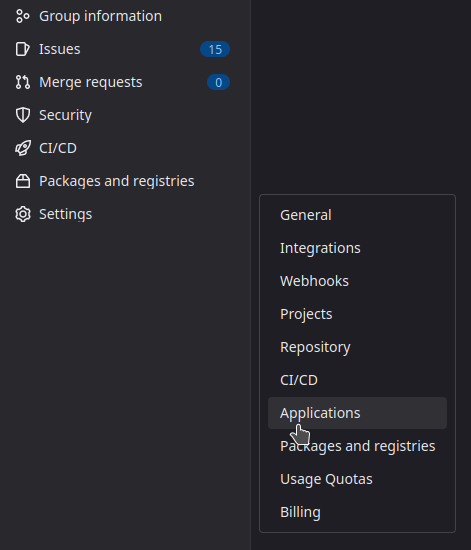
Then, create an application with the following information :
Warning
You need to replace <API_URL> below with the API URL consistently with what you have configured as backend DNS record and what you have in your .env file
- Name:
R2Devops self-hosted - Redirect URI :
https://<API_URL>/kratos/public/self-service/methods/oidc/callback/gitlab - Confidential:
true(let the box checked) - Scopes:
openid, email
Click on Save Application and you should see the following screen:
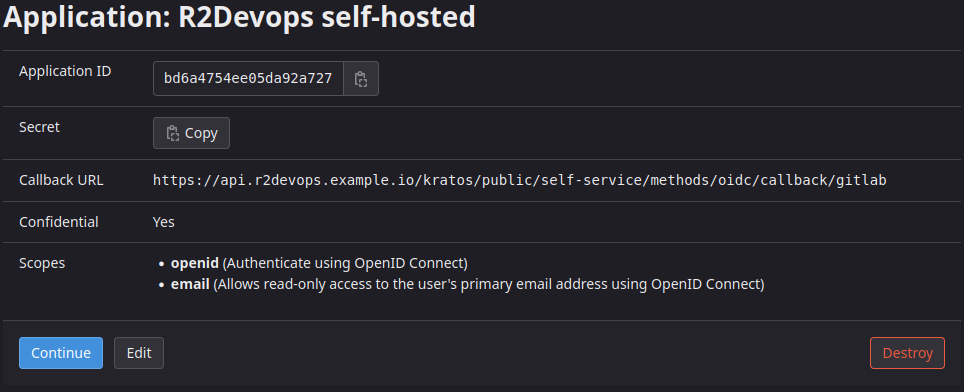
Update the configuration
In .env file, in the OIDC section:
- Copy/paste the
Application IDand theSecretfrom the application you just created - Update the
GITLAB_INSTANCE_DOMAINvalue with the domain of your GitLab self-hosted instance
# OIDC
GITLAB_OIDC='
[
  {
    "id": "gitlab",
    "provider": "gitlab",
    "issuer_url": "<GITLAB_INSTANCE_DOMAIN>",
    "client_id": "<APPLICATION_ID>",
    "client_secret": "<APPLICATION_SECRET>",
    "mapper_url": "file:///etc/config/kratos/oidc.gitlab.jsonnet",
    "scope": [
      "openid",
      "email"
    ]
  }
]
'
🔐 Generate secrets
Generate random secrets for all components:
sed -i "s/REPLACE_ME_BY_JOBS_DB_PASSWORD/$(openssl rand -hex 16)/g" .env
sed -i "s/REPLACE_ME_BY_JOBS_REDIS_PASSWORD/$(openssl rand -hex 16)/g" .env
sed -i "s/REPLACE_ME_BY_S3_SECRET_KEY/$(openssl rand -hex 16)/g" .env
sed -i "s/REPLACE_ME_BY_KRATOS_DB_PASSWORD/$(openssl rand -hex 16)/g" .env
sed -i "s/REPLACE_ME_BY_SECRET_COOKIE/$(openssl rand -hex 16)/g" .env
sed -i "s/REPLACE_ME_BY_SECRET_CIPHER/$(openssl rand -hex 16)/g" .env
sed -i "s/REPLACE_ME_BY_SECRET_DEFAULT/$(openssl rand -hex 16)/g" .env
🐳 Docker login
Login to R2Devops registry
echo $REGISTRY_TOKEN | docker login --username r2devops --password-stdin https://registry.gitlab.com/v2/r2devops
🚀 Launch the application
Congratulations
You have successfully installed R2Devops on your server 🎉
Now you can launch the application and ensure everything works as expected.
Run the following command to start the system
docker compose up -d
Reconfigure
If you need to reconfigure some files and relaunch the application, after your updates you can simply run the command again to do so.
docker compose up -d
What's next
Now that you have finished this tutorial, here are some simple tasks you should give a try :
- 📈 Learn how to use the platform by reading the documentation
- 📕 Import your first job, here is the tutorial
Not the same behavior
Did you encounter a problem during the installation process ? See the troubleshooting section.